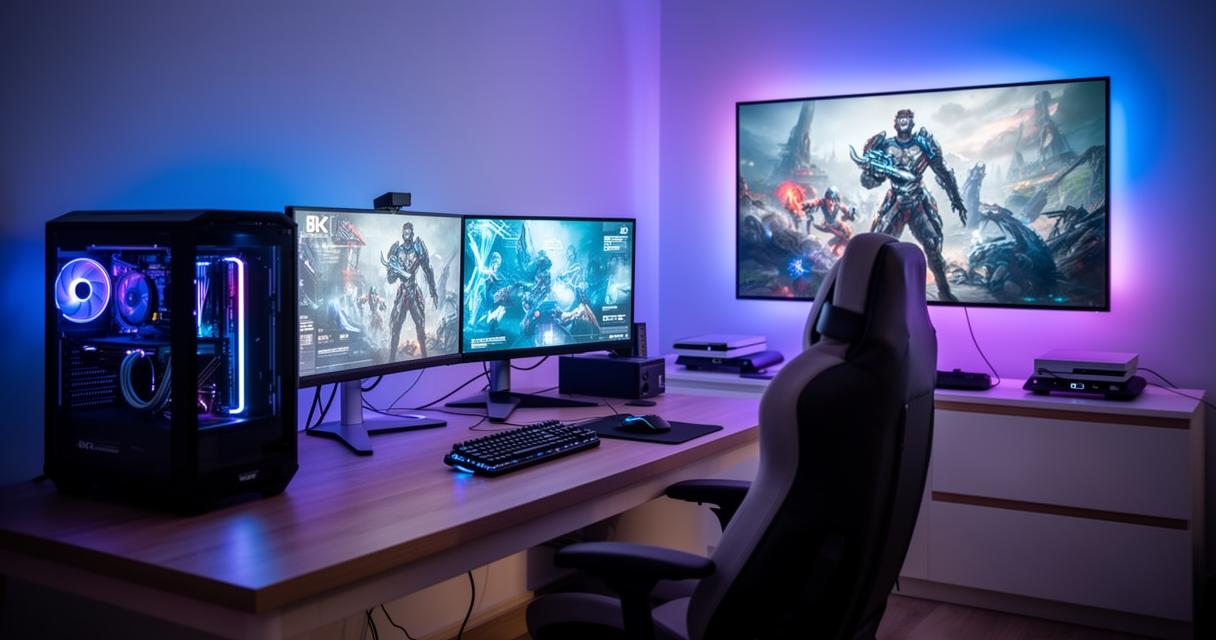
Whether you're troubleshooting an error message, saving details from an online form, or capturing a highlight from your favourite game, knowing how to grab a screen on your Asus machine is a genuinely handy skill. Windows offers a surprising number of ways to do this, and once you've got the hang of a couple of them, you'll wonder how you ever managed without. This guide walks you through the most reliable methods, from simple button presses to dedicated software, so you can pick whatever suits your needs best.
At a glance
- The PrtSc key allows for quick full-screen captures copied to the clipboard, while combining it with the Windows key saves the image automatically to a folder.
- Using Alt + PrtSc enables users to capture only the currently active window, which is ideal for avoiding background clutter in documentation or presentations.
- The Windows + Shift + S shortcut opens a toolbar for selecting specific shapes or areas, allowing users to exclude sensitive information from their screenshots.
- Built-in Windows applications like the Snipping Tool and Snip & Sketch provide advanced features such as screen capture delays, image annotations, and various selection modes.
- For gaming, the Windows Game Bar provides a specialized overlay to capture screenshots and recordings without interrupting gameplay performance.
- Third-party software and graphics card utilities offer advanced functionality like scrolling captures, scheduled recording, and detailed control over resolution and file formats.
Essential Windows Shortcut Keys for Capturing Screens on Asus Devices
Using the Print Screen Button for Quick Captures
The quickest route to a screenshot on any Asus laptop or desktop running Windows 10 or Windows 11 is the trusty PrtSc key. Tapping it copies the entire screen straight to your clipboard, ready to be pasted into an email, document, or image editor. If you'd rather skip the paste step and have the image saved automatically, pressing the Windows key together with PrtSc does the trick nicely, dropping a copy directly into your Pictures folder under a subfolder named Screenshots. This is particularly useful when you need to save important information for later without fussing about where it's gone.
For those moments when you only need to capture the window you're currently working in, rather than your whole display, the combination of Alt and PrtSc is the one to remember. This is especially useful when preparing presentations or documenting capture errors, as it keeps things tidy by cutting out the clutter of other open windows and taskbars.
Windows key combinations for selective screen grabs
Sometimes you don't want the full screen at all, just a specific portion of it. That's where the Windows key plus Shift plus S combination comes into play, opening a small toolbar that lets you draw a rectangle, freeform shape, or select a particular window to capture. It's a brilliant option when you're trying to hide sensitive information whilst still sharing the relevant bit of your display, and it integrates directly with the clipboard for instant pasting.
Built-in Windows Tools and Software Options for Screen Recording on Asus Laptops
Asus laptops running modern versions of Windows come with the Snipping Tool pre-installed, and it's well worth getting familiar with. This little application lets you set a delay before capturing, choose between full-screen, window, or free-form snips, and even annotate your image afterwards with a pen or highlighter. Snip & Sketch, its close cousin, offers similar functionality with a slightly more modern interface and quicker access via notifications. Both save your work in PNG format by default, which keeps image quality sharp, something you'll appreciate if you're capturing detailed diagrams or text for a report.
One quick tip worth mentioning: before you take your screenshot, it helps to clear unwanted screens or notifications cluttering your display, and to adjust your display settings for better clarity if text looks blurry. A few seconds of tidying up beforehand saves a lot of cropping afterwards.
Third-party software solutions for advanced screen recording
If the built-in tools don't quite cover what you need, there's a whole world of third-party accessories designed for more advanced screen capture and recording. These programmes often include features like scrolling captures, which stitch together long web pages into a single image, along with editing suites, cloud storage integration, and scheduled recording. They're particularly popular among people who need to record extended tutorials or troubleshoot recurring issues across multiple sessions. Many of these tools also support various formats beyond PNG, giving you flexibility depending on whether you're prioritising file size or image sharpness.
Specialised Methods for Capturing Gaming Images and In-Game Footage on Asus Computers
Utilising windows game bar for gaming screenshots
Gamers using an Asus laptop or desktop have a dedicated ally in the Game Bar, accessible by pressing the Windows key alongside G whilst a game is running. This overlay lets you snap screenshots with Windows key plus Alt plus PrtSc, or record short clips of gameplay without needing to exit to the desktop. It's built specifically with gaming performance in mind, so it shouldn't interrupt your frame rate noticeably. Captured images and clips are stored in a Captures folder, keeping them separate from your everyday screenshots and making it easier to organise footage for editing or sharing later.
Configuring graphics card software for optimal game capture
Beyond the built-in Game Bar, many Asus gaming machines come equipped with dedicated graphics card software that offers its own overlay for capturing screenshots and recording video. These tools often provide finer control over resolution, frame rate, and file format, which is handy if you're aiming for high-quality footage for streaming or content creation. Taking a little time to configure these settings properly, checking your display resolution and adjusting bitrate where needed, can make a noticeable difference to the final result. It's also worth checking driver updates periodically, as outdated graphics drivers are a common cause of capture-related glitches and quality issues.
Whichever method you settle on, from a simple tap of the PrtSc key to a fully configured graphics overlay, taking screenshots on your Asus laptop or desktop needn't be complicated. With a bit of practice, you'll find the approach that fits your workflow, whether that's quick everyday captures, detailed presentations, or preserving your best gaming moments for posterity.